
Portal guide
February 2025

Migration: AirPlus Lodged Products Registering for the new AirPlus Portal as a new user


- On the migration date, you will receive an email from AirPlus with a registration link for the new AirPlus Portal.
- Click on the link in the email to start the registration process.
- Please note that the registration link is only valid for 48 hours.
- Please have your company ID, username and password for the previous AirPlus Business Travel Portal ready.

Email with a registration link for the new AirPlus Portal


- Enter your
- Company ID
- Username
- Password
from the previous Business Travel Portal.
- Click Next to continue.
Enter your previous Business Travel Portal login details


- Select your company from the drop-down menu.
- If your company is not listed, please choose Other and type the name of your company into the free text field.
Select your Company

- Complete your data with:
- First Name
- Last Name
- Gender
- Click Next.
Enter your credentials


- You will receive a TAN code (a one-time password) via email.
- Please note: The TAN code is only valid for 3 minutes.
- Enter the TAN code you received and click Confirm to proceed with your registration to the portal.
Confirmation via two-factor authentication


Good to know Immer Every time you log into the AirPlus Portal, you will need to enter a TAN code. This will also be necessary when changing your personal data incl. mobile number.




- You have successfully completed your migration and will shortly receive an email with a verification link for the password assignment.
- Click on the verification link (valid for 24 hours) in the email to finalize your registration to the new portal.
Verification link via email


- You can now set your password for the AirPlus Portal.
- Click Submit.
- Please note: Your password must meet the specified criteria in order to be accepted.
Set a password before link expires

Treat your login credentials as confidential and keep in mind that a user can only be logged into one device at a time.


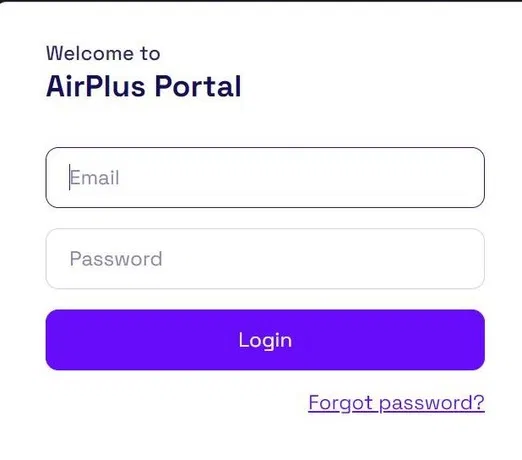
Please click on Back to Login and then enter:
- Your email address* (automatically set as your username)
- Your new password
- Click Login.
Login to the AirPlus Portal


* Your email address is the same address to which your verification link was sent.


- Each time you log in to the portal, you will need to enter a new TAN code (one-time password).
- Please note: The TAN code is only valid for 10 minutes.
- Enter the TAN code you received and click Submit.
- You can request a new TAN code via email by clicking Request new TAN.
Enter your TAN


Good to know The TAN code is also required if you change your personal information, such as your phone number.

- Read through and agree to the Terms of Service for the AirPlus Portal.
- Click Confirm to enter the AirPlus Portal.
Accept the terms of service


- Finally, you will need to fill in a few fields with personal information.
- Click on Confirm to complete the registration.
- Please note: To verify your phone number, you will receive a TAN via text message (SMS).
The Final Step: Provide the required data

Good to know In the future, you will always receive the TAN for logging into the portal by text message.
- Check the settings of your lodged AirPlus products in the portal.

Check your migrated AirPlus payment solutions in the AirPlus Portal
1

* The Dashboard is available for the following roles: Program Manager, Portal Administrator and Card Administrator


2
DashBoard*
Program Managers and Portal Administration can view the complete account number under View Number. (see )


Thank you!


- A TAN is a transaction authentication number that the user receives by SMS (text message).*
- It is a six-digit-one time password.
- The TAN is a security element and represents an additional authentication step when confirming a process.
What is a TAN?


Back to login process
*The portal role “Card User (Corporate Card)” can optionally receive the TAN by email.

- If your verification link is no longer valid, please go to the login page of the new portal: https://businesstravelportal.airplus.com
- Click on Forgot Password?
- Enter your email address (the email address where you received the verification link) and submit your request.
- You will then receive an email with your new verification link.
What to do if the verification link is no longer valid?



Back to login process
